

Tag: microsoft teams

  • Making Business Calls Easy with Microsoft Teams Calling

    Making Business Calls Easy with Microsoft Teams Calling

    Hybrid working is definitely here to stay, therefore, how we communicate needs to adapt. Picking up the phone shouldn’t feel like juggling apps or jumping through hoops – it should just work. That’s where Microsoft Teams calling steps in.

    At The Unite Group, we help businesses make the switch to a more streamlined phone system by bringing calls directly into Microsoft Teams. It’s a simple idea with big benefits  and it’s changing the way companies connect, wherever they work from.

    What Is Microsoft Teams Calling?

    You probably already use Microsoft Teams for meetings, chats, and sharing files. Teams calling adds phone calls into the mix – allowing your team to make and take calls to and from any phone number, directly from the Teams app.

    Instead of keeping a separate phone system, you handle everything in one place. Your team can use their laptop, mobile, or even a Teams-enabled desk phone, and it just works.

    With Teams calling, your business benefits from:

    • One easy-to-use system for calls, chats, meetings, and collaboration
    • PSTN connectivity, so you can call landlines and mobiles
    • Microsoft’s security and compliance standards
    • A consistent experience across devices

    Why More Businesses Are Switching to Teams Calling

    Switching to Teams calling isn’t just about convenience – it’s about giving your staff a better way to work, wherever they are.

    All-in-One Communication

    Instead of flicking between different apps for phone calls, video meetings, and messaging, Teams calling brings it all into one platform. Your staff can call a colleague, jump into a video chat, or collaborate on a file without ever leaving Teams.

    Built for Hybrid Working

    Whether your team’s working from home, in the office, or on the move, Teams calling keeps everyone connected. You can answer calls from your desk phone in the morning, switch to your mobile in the afternoon, and pick up a missed call from your laptop later. It’s that flexible.

    Simple Scaling

    As your business grows, you need a phone system that grows with you. Traditional PBX systems can be a hassle to scale up – but with Teams calling, adding new users is as easy as updating your Microsoft 365 licences. You pay for what you need, with no hidden costs or complicated setups.

    Secure and Compliant

    Microsoft Teams calling meets the highest standards for security and compliance. Plus, with built-in reporting and analytics, you can keep track of call performance and usage trends across your organisation.

    How The Unite Group Makes It Easy

    We know that switching phone systems can feel daunting. That’s why The Unite Group takes care of everything, from start to finish.

    Here’s what we offer:

    • Consultation: We’ll help you choose the right Teams calling plan based on your business needs, whether you’re making local or international calls.
    • Setup and Configuration: Our experts will configure your Teams calling environment, ensuring smooth call flows and minimal disruption.
    • Number Porting: Keep your existing business numbers – we’ll handle the transfer with no downtime.
    • Training and Support: We provide training for your team, plus ongoing support to keep everything running smoothly.
    • Local Service: Our UK-based support team is always here to help if anything goes wrong.

    We don’t just hand over the system and walk away – we work with you to make sure everything fits your business perfectly.

    Who Can Benefit from Teams Calling?

    Teams calling isn’t just for big corporations – it’s a great fit for all kinds of businesses. Here are a few examples:

    • Customer service teams: Use call queues, auto-attendants, and easy caller lookup to handle enquiries efficiently.
    • Sales teams: Make and track calls from anywhere, with CRM integration and real-time contact data.
    • Remote and hybrid workers: Stay connected from any location, with a consistent experience across devices.
    • Project teams: Share updates, hold calls, and collaborate securely, all within Teams.

    Is It Time to Upgrade Your Phone System?

    If you’re still using a traditional phone system or juggling separate apps for calls, chats, and meetings, it might be time to think again. Microsoft Teams calling offers a flexible, secure, and cost-effective solution that fits the way modern businesses work.

    Whether you’re an SME growing your team or an established company looking to simplify communication, the switch to Teams calling makes sense.

    Let’s Get Started

    At The Unite Group , we’re here to make your transition to Microsoft Teams calling as smooth as possible. From initial setup to ongoing support, we’ll work with you to ensure your system fits your needs and helps your business stay connected.

    Ready to take the next step? Contact us today to learn more about how Teams calling can make a difference for your business.


  • Make the most of Microsoft Excel with these top 8 tips  

    Make the most of Microsoft Excel with these top 8 tips  

    Microsoft Excel, part of the Microsoft 365 suite of productivity and business tools, is the world’s most popular spreadsheet application. It’s used by businesses for finance, accounting, resource planning and more.

    Learning the ins and outs of Excel is one of the most effective ways to take your business to the next level, as Microsoft’s flagship spreadsheet program has been a cornerstone of the modern business world for its whole existence.

    With spreadsheeting being so important in the modern business world, we believe that knowing how to use Excel’s many features and shortcuts will save you time and truly unlock your company’s spreadsheeting potential. 

    That’s why in this article, we’re going to go over some of the top tips you should be utilising when using Microsoft Excel.

    Hide Rows and Columns

    When using Excel and going through your data, sometimes you’ll find that there are certain rows and columns that are just getting in the way. 

    Or even sometimes, there will be data that’s irrelevant currently that you want to hide for just the time being. 

    In any case, Microsoft Excel allows you to easily hide rows and columns with a few clicks.

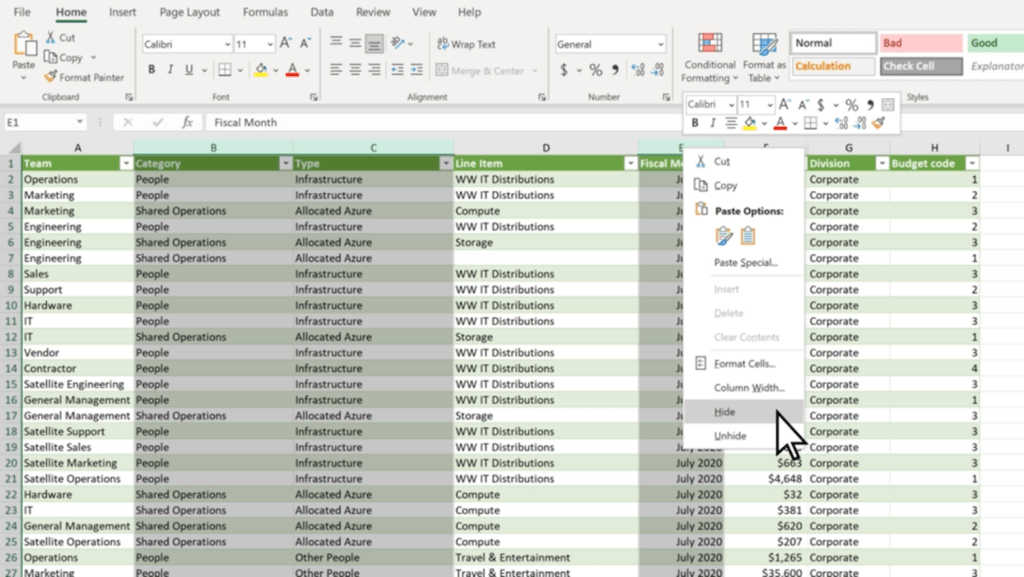
    1. Select all of the rows or columns that you want to hide. (You can use Ctrl to select columns that aren’t adjacent.)
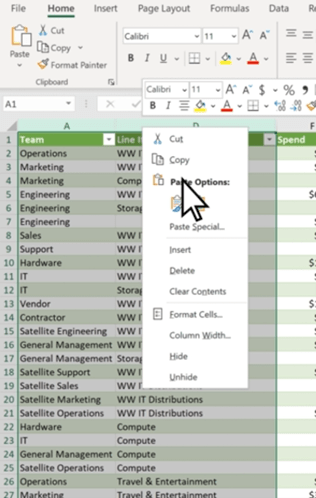
    2. Right-click, and click ‘Hide’

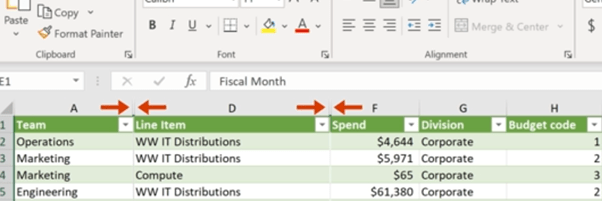
    The selected rows or columns will now be hidden, and won’t show up when you’re using the spreadsheet. 

    You can see which parts of your spreadsheet have hidden rows or columns easily too, as there will be two lines in the row or column bar to show hidden cells.

    To easily unhide rows or columns, you can double-click the two aforementioned lines. Or, you can select the two adjacent rows or columns and right-click, and select ‘Unhide’.

    Hiding rows and columns is particularly useful for long spreadsheets such as day sheets or call logs – as you avoid having to scroll down to the end of the sheet. 

    Select Using Ctrl + Shift

    Excel has many elegant tools you can use to make tasks quick and easy, and selecting cells is no different. Microsoft allows you to quickly select multiple cells using both Shift and Ctrl, which can easily speed up your workflow when working in the program.

    Clicking on two cells while pressing Ctrl will select those cells simultaneously, as will any other cell you click while pressing Ctrl. 

    Shift, on the other hand, allows you to create a box selection of cells. Simply click whatever cell you want to be on the top left corner, and then Shift-click whichever cell is desired for the bottom right corner. Excel will automatically select a rectangular box based on the selected cells.

    However, you can use both Ctrl + Shift to select whole rows and columns. By selecting a cell and holding down Ctrl + Shift, you can use your arrow keys to select all the data above (by pressing Up), below (by pressing Down) or left and right (with the respective arrow keys).

    Use Quick Analysis

    Quick Analysis is another tool you can use to save time and quickly do what would usually be a time-consuming task. This tool lets you easily format your data, or even make a chart out of a set of data, with just a few button clicks.

    1. Select the cells you want to use.
    2. Press Ctrl + Q on your keyboard or the small Quick Analysis tool on the bottom right of your selection.
    3. Choose whatever you want to format your data with, or a chart if you want to use a chart.

    This tool saves a lot of time and has many functions that can generally improve your Excel experience and workflow.

    Automate with IF Functions

    Using IF functions to easily automate your spreadsheet is one of the most useful tools in Microsoft Excel. 

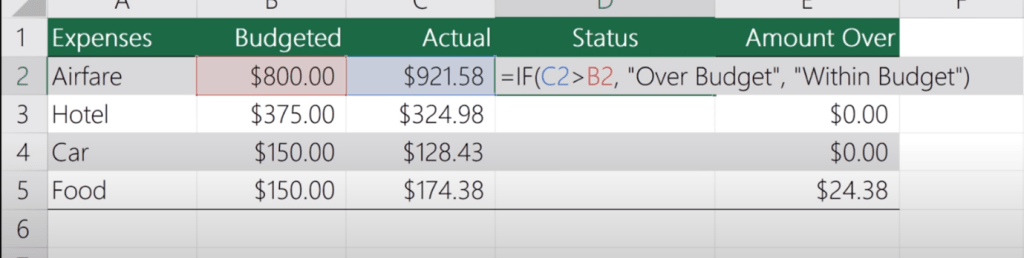
    In any cell, firstly type ‘=IF’.  The = symbol indicates to Excel that you’re entering a function, of which there are many you can learn and use. Then, you want to create your new function.

    For example, this function is looking to see if C2 is Greater than B2, and will display ‘Over Budget’ if it is. Otherwise, it will display ‘Within Budget’. IF functions work with the templating =IF(Condition, Is, Otherwise), with Is and Otherwise being your two outcomes. You can use this template to simply make your own simple IF functions with ease.

    Tag Colleagues in Comments

    Collaboration is key to any modern workplace, and Microsoft knows this. This is why Excel — and the other Microsoft 365 programs — have great collaboration features.

    One simple feature you should be utilising in collaboration is being able to tag colleagues in comments. This can be super useful and helps improve communication.

    To do so, simply right-click wherever you want to comment and select ‘New Comment’. Then, @Mention whoever you want to tag in the comment. This will automatically send them an email notifying them that you’ve tagged them. 

    Add More Than One Column

    Creating multiple columns in Excel is simple, and a great way to add more columns to a finished table or easily expand your spreadsheet.

    1. Click on the column to the right of where you want to make new columns.
    2. Press and hold Ctrl, and click on ‘Insert Columns’ in the pop-up menu.
    3. Enter the specified number of columns, then click Done.

    Make Use of Data Validation

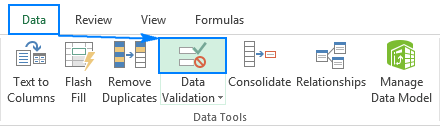
    Data validation restricts user entry, ensuring that only correct data is being entered into the spreadsheet. For example, you can restrict entry on certain cells to only allow numerical values between 50 and 100. Or, you can only allow text that contains a certain word.

    To do so, select the cells you want to validate, then head over to the ‘Data’ Tab. Then, click ‘Data Validation’. This will bring up a data validation menu which you can use to create new rules for those specific cells.

    (Source: https://www.ablebits.com/office-addins-blog/data-validation-excel/)

    Bonus Shortcut Keys

    Excel has lots of shortcut keys that you can use to easily enter data or complete actions that would usually require you to type or click a few buttons. Some of the best ones are:

    • Start editing the current cell: F2 (This is a crucial one, as it speeds up your workflow significantly).
    • Insert the current time: Ctrl+Shift+:
    • Change a Date’s format: Ctrl+Shift+# 
    • View all formulas in a sheet: Ctrl + `
    • Hide the current column: Ctrl + 0
    • Hide the current row: Ctrl + 9
    • Strike through the text in a cell: Ctrl + 5
    • Switch between currently open workbooks in different windows: Ctrl + F6
    • Flick through the sheets in the whole workbook: Ctrl + PageUp/PageDown

    Get started with Excel and 365 Today

    These tips will help you become an Excel master and truly enhance your workflow, and show how powerful and useful Excel actually is in the modern world. With so many features, it’s no wonder that so many companies still utilise Excel daily.

    Getting started with Microsoft 365 is a great way to take your business to the next level. Including Excel, 365 has all of the programs any modern office needs to keep up with the current business world, and has many tools that will make your workplace truly shine. 

    Get in touch today and see how we can help you get started!

  • Top 9 Tips to Work Smarter in Microsoft Teams

    Top 9 Tips to Work Smarter in Microsoft Teams

    Companies are rapidly implementing Microsoft Teams to be able to enrich their businesses’ communications structures, and it’s proving successful. Teams is by far the most rapidly growing unified communications solution, and is not looking to stop anytime soon.

    With Teams being such a crucial part of the modern workflow, it’s important to make sure that you know exactly how to use it to its maximum potential. After all, failing to do so could waste lots of time, and can just be an inconvenience for you when trying to get important work done.

    We believe that everyone should learn how to use Microsoft Teams to its fullest potential. That’s why in this article, we’re going to go over some of the top tips to work smarter in Microsoft Teams in 2022.

    Top 9 Tips to Unlock Teams’ Full Functionality

    Send Urgent Messages

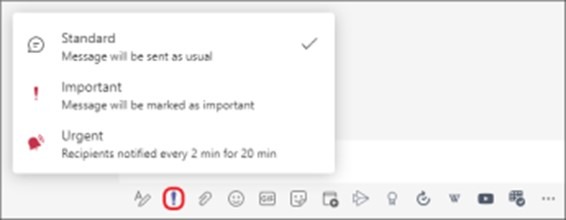
    Sometimes, it can be easy to miss messages coming in. Especially when your recipient has a busy inbox, it’s important to mark your message as urgent to make sure that whoever’s on the other end knows that it’s a time-sensitive matter.

    Luckily, doing so in Microsoft Teams is incredibly simple. Press the exclamation mark in the toolbar below the textbox in the chat interface, and select ‘Urgent’. Your message will now be marked as urgent for the recipient. Type in your message and send it, and that’s it!

    mark a message as urgent

    Use Meeting Reactions

    Sometimes you want to show your approval of something in a meeting, but don’t want to interrupt the flow of conversation or presentation. Sometimes, you just want to laugh at a joke without unmuting your microphone.

    Meeting reactions make this simple. Just click on the Reaction menu during the meeting and click a reaction, and they’ll pop up on the side for everyone to see.

    reactions on teams

    Create Polls

    Asking everybody how they feel about a topic can just take up time and be a mess. Chances are, people will start a discussion in the chat and it’ll make it hard to be able to see the information you need.

    Polls are a great way to easily get opinions without hassle. They’re easy to set up, and can be a great way to collect data without having to sift through discussions to work out what people think. To make a Poll — click the ‘Microsoft Forms’ button in the taskbar and fill in the relevant information, and you’re done!

    Automate Tasks with Power Automate

    Automation is powerful. Rather than having to manually do a list of tasks, automation takes care of it for you. This can save hours of time and effort, and ensure the tasks are all done correctly and uniformly every time.

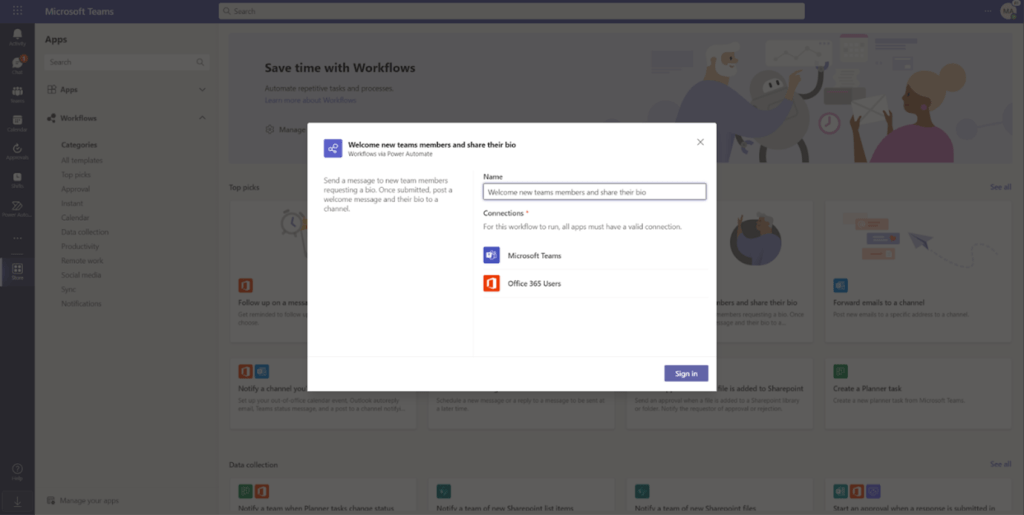
    In Microsoft Teams, you can easily set up buttons to do multiple things automatically, without needing to manually input. 

    1. Go into the Store tab on Microsoft Teams.
    2. Select ‘Workflows’, and select a template to create a workflow.
    3. Fill in each parameter, and you’re good to go!
    automate in teams

    Use Live Transcripts

    Live transcription is a great way to ensure that hard-of-hearing employees can stay in the conversation. It’s also just a good thing to have, as even a slightly poor connection quality can turn a Teams meeting into robotic gibberish.

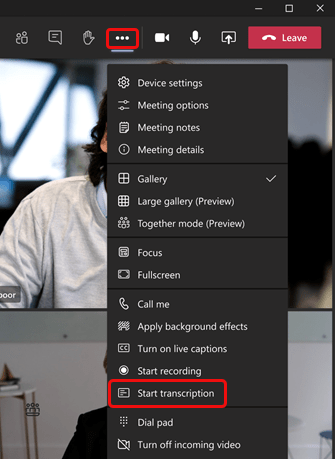
    To turn on live transcription, press the three dots on the meeting controls to view ‘More actions’, and click “Start Transcription”.

    using live transcripts in teams

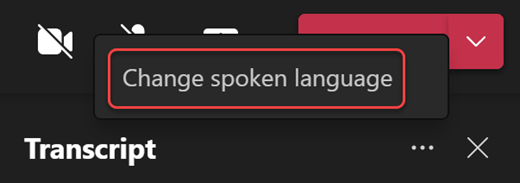
    You can also change the transcription language. To do so, click the three dots on the right of the transcript window and click “Change Spoken Language”.

    change the transcript language

    Reorganise your Teams

    Sometimes, you want to put a specific team at the top of your teams for ease of access. Or, maybe you just like alphabetical order and want to organise your teams that way. Whatever the reason may be, it’s simple to reorganise your teams.

    Just click and hold your cursor on the team that you want to move, and drag it to its new place on the teams list.

    Use Loop Components

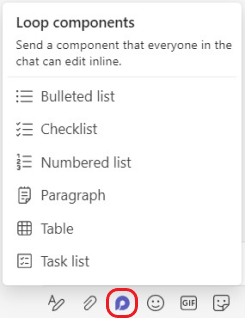
    Microsoft’s groundbreaking Loop is the future of collaboration in the workplace. And, you can make use of Loop in Teams — with Loop components. With Loop components, you can collaborate with your team on anything — from agendas, to ideas, to simple checklists.

    By sending a Loop Component into a chat, you allow anyone in that chat to be able to work on it collaboratively. To do so, click on the Loop components button in the taskbar. Then, enter whatever you want into the component, and press send. 

    People will instantly be able to inline edit the component in the chat, and you can even send the same component to multiple chats. 

    use loop components in teams

    Bookmark Important Conversations

    Sometimes, you’ll find that someone in your team says something that’ll be important later. Rather than having to dig back and search for it, it’s much easier to save these messages.

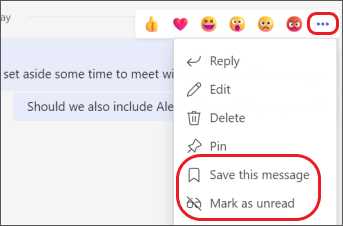
    To do so, hover over those messages and click on the three dots next to the reactions, then click “Save this message”. This will save that message to your saved messages, for easy reference. You can also pin messages to the channel here.

    bookmark important conversations in teams

    Create Teams Templates

    Creating a team from scratch can take a lot of time and effort. Microsoft Team’s templates are an easy way to circumvent this hassle. You can either create a template for use in all of your teams from scratch or turn a team you already have into a template.

    Create a template from scratch

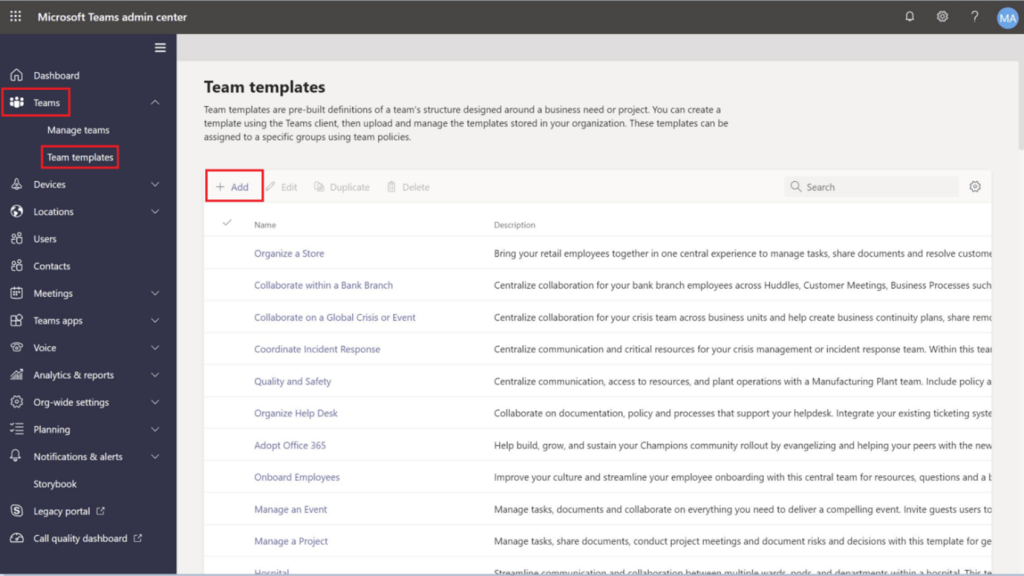
    1. Go to the Teams menu, and into ‘Team Templates’.
    2. Click ‘Add.’ and then ‘Create a brand new template.’
    3. Fill in the template-builder with the template name and description.
    4. Add any channels you may want to the template.
    5. Your template is created!
    create team templates in teams

    Create a template from an existing team

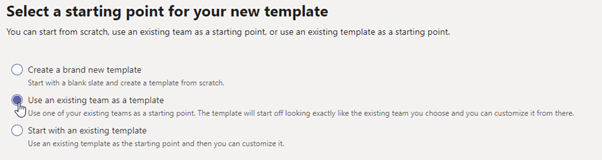
    1. Go to the Teams menu, and click on ‘Team Templates’.
    2. Click on ‘Add’, and then select ‘Use an existing team as a template.’
    how to create team templates
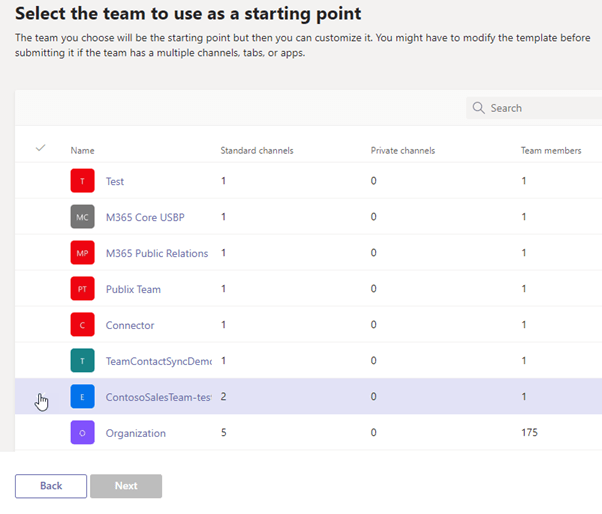
    • Select the team you want to use as a starting point.
    how to create new template in teams 2
    • Fill in the template name and details.
    • If need be, you can add new channels or edit existing channels in the template.
    • Your new template is done!

    Get Started with Microsoft Teams!

    Microsoft Teams is a powerful communications tool that can open up new collaborative workflows for your organisation. 

    Following these tips & tricks will help unlock Microsoft Teams’ full potential. After all, Teams is rammed with brilliant quality-of-life features that can save you time and help you work better together. 

    Of course, as Microsoft Teams expands in functionality, its suite of features will only get more in-depth. So, making sure to stay up to date regularly is important. A managed service provider can make sure that all of your 365 applications and tools are up to date, and can ensure that they’re set up properly – just like ourselves here at The Unite Group.

    Interested in getting started with Microsoft Teams’ rapidly growing platform? Get in touch today, and see how we can help you! 

  • A chat with Mike, our Technical Director

    A chat with Mike, our Technical Director

    Mike, our Technical Director

    Following on in our meet the team series, we introduce you to Mike. Mike is our Technical Director here at The Unite Group and mostly focuses on the IT side of the business.

    We recently had a chat with him to find out a bit more about him and his role…

    Growing up, what did you want to be?

    I never really knew what field I wanted to go into when I was younger. However I did always enjoy engineering and problem solving. So naturally I ended up doing tech & sciences which led me into discovering a passion for IT and business. I was told by a careers advisor at school that as I was an early riser and liked the outdoors I should be a farmer, so I’m glad I didn’t follow that advice!

    What is your role at The Unite Group and how did you end up where you are now?

    I am one of the directors within the group and oversee most technical IT aspects of the company and IT projects. I have worked in IT for 23 years. In roles ranging from IT helpdesk, support desk team leader, IT consultant and GIS analyst. After starting SMT Technologies with Dean we later merged our business with Unite Communications. This formed The Unite Group, combining the IT expertise of SMT Tech with the comms expertise of Unite landing me here amongst a great team.

    What does a typical day look like at The Unite Group?

    As we service a whole host of companies for comms, IT and social media we don’t really have a typical day in the office. I  can end up working on any project if the team escalates issues to me. This is one of the exciting parts of the job! Although to summarise a standard week I will mostly be working on planning projects and meeting with clients to discuss the IT options available to them, working with the team on any escalations and trying to fit in work on the groups IT and systems also.

    What is your most and least favourite part of the job?

    I most enjoy planning and deploying new solutions and systems to overcome issues for clients and our own business, it’s like solving a puzzle!

     As for the least favourite part I would have to say, and Lorraine would probably agree, I don’t like completing the finance paperwork we need to keep on top of so I often cause her a headache chasing me to complete or submit information she needs.

    What is your greatest achievement?

    I would have to say it would be the hard work put into our company which saw us grow from a small 2 man firm into the group we are today. It’s a great source of pride and we really have a great team throughout which delivers a great atmosphere!

    What is the best piece of advice you’ve been given?

    Simply try your best and don’t give up, something instilled firmly by my family as a youth and as a married adult and its very much the theme of my favorite poem, IF, with the line “Or watch the things you gave your life to, broken,

        And stoop and build ’em up with worn-out tools very much instilling the fact that at times you will hit hardship and see a dream dashed but if you just keep on you can make something better. I think most people can relate closely to that with all the tragedies and hardships recently.

    Where do you see yourself in 10 years’ time?

    We have some exciting plans to scale and grow the group and the offerings we deliver so I very much see myself still here, maybe with a 4 day week if I’m lucky! I don’t like having nothing to do so the hustle and bustle of the business is great.

    How do you unwind outside of work?

    I enjoy zoning out to music. I listen to anything from classical through to country and heavy rock & metal depending on my mood. My current favourite playlist is leaning very heavily to Pink Floyd and Creedence Clearwater Revival for a bit of a retro kick. I also enjoy cooking (when it’s not a rush just to get dinner out) and we as a family enjoy traveling when possible.

    To arrange a chat with Mike, or if you want to see how The Unite Group can help you with your business technology needs, contact us on 0191 466 1050.

  • Productivity Hacks for Working from Home during the Covid-19 Pandemic

    Productivity Hacks for Working from Home during the Covid-19 Pandemic

    Love it or hate it, working from home has been a huge part of the last 10 months. How do you stay productive and motivated working from home? Here are some top ten tips from The Unite Group.

    1. Start the day as you mean to go on!

    Very few people can say they are productive in their pyjamas! So, get up, shower and dress as if you are leaving the house to go to work. It will put you in the correct working mindset for the rest of the day.

    2. Stick to a routine.

    Create a new routine. Set goals, be consistent and make sure that you factor in time for your lunch break. Goal setting helps to create control over your workday and gives success points to work towards. By having a set routine for the workday will ensure that you are in control of your work/life balance.

    3. Have a designated workspace.

    Not everyone has the luxury of an office space for working from home. But having a designated area for work during the day can make it easier to separate your working life from your home life. Keep your workspace tidy and organised, an organised and tidy workspace prevents distractions. Does your designated workspace have adequate WIFI access? Nothing disrupts your productivity more than a poor WIFI connection.

    4. Avoid Multitasking.

    While multitasking is a great skill to have, it can be detrimental to your productivity. All too often, multitaskers have lots of tasks and projects going on at the same time but find progress is slower. Block out time for each project or task to ensure each one gets the same attention.

    5. Human Interaction.

    Keeping in contact with your colleagues and team by having weekly meetings and catch ups can keep the human element in your working week. Not only does it reduce the feeling of isolation often felt from people who are working from home, but ensures that you can still use your work colleagues in the same way as you would in the office to bounce ideas off and work collaboratively.

    6. Use technology to your advantage.

    The advancements of technology in recent years has made working from home a lot easier. Tools such as Microsoft Teams where meetings can be held remotely with full functionality such as chats, video, screen sharing and file sharing can make collaborative working in a remote environment not only interactive but productive. With Microsoft Teams, groups of people in your business can be assigned into different teams and have their own channels of communication too. Microsoft’s SharePoint feature can remove the need for your staff to have to dial in to an onsite server. Files are stored remotely on the cloud and can be accessed by the authorised members of staff from anywhere.

    7. Be active.

    Challenge yourself to be active every day. Use your lunch break to go for a walk and get some fresh air or use the end of the workday to take a walk to reset your brain from work mode to home life mode. Its easy to go from bed – work – sofa – bed but this is detrimental to your mental wellbeing and physical health. Why not challenge your team or family to a steps competition to see how many steps they take over a week. You could use technology such as Fitbits or Apple Watch competitions to keep a track of everyone’s progress.

    8. Plan your work week.

    Make the first task of the week to plan the week ahead. Set aside time for each task that needs to be completed over the course of the week and factor in time for your lunch break. With Microsoft Teams you can integrate Trello boards to list the tasks needed. Trello promotes collaborative working too since you can assign tasks on the boards to other team members. Try to not work with back to back meetings and plan time aside to check and respond to emails rather than working your emails on a reactive basis. With Microsoft 365, a daily briefing email is sent from Cortana, this email gives tips on planning your day productively, factoring in break times and also reminders on Commitments you may have to follow up on.

    9. Separate personal life from work life.

    Its easy to sit at your workspace and think to yourself ‘I should put on a wash load’ or ‘I could really do with running a hoover over the carpet’. Procrastination at its finest. If you were leaving the house to work, you would not be able to do these things so in order to separate work from home, don’t be tempted to do household tasks in working times.

    10. Finish work on time.

    If your working day finishes at 5pm, make sure that you finish work at 5pm. Don’t be tempted to go back to your workspace to just finish one little thing at 8pm. You wouldn’t be able to do that if you were working in an office. Make a note and make it the first priority of your next working day.

    Working from home does not need to cause a headache for your business or your colleagues. To discuss ways in which The Unite Group can make your remote working experience more seamless, please get in touch with us and book a consultation call.

  • Empower your team to collaborate and connect with Microsoft Teams

    Empower your team to collaborate and connect with Microsoft Teams

    As social distancing and the continued threat from COVID-19 continues to keep people working remotely, it’s becoming increasingly important to help your team feel connected. With isolation, social distancing, and stay at home mandates, it’s easy for individuals to start to feel disconnected and discouraged. Giving your team the resources to stay connected can help. Microsoft Teams can be one of those resources.

    Keeping Team Morale Up

    Not only can Teams help you continue to run your business as smoothly as possible during this challenging and uncertain time, it can also bring your team together. With features like one-on-one chats or instant group messages, colleagues can easily keep in touch—making up for the missed ‘in office’ conversations.

    Smooth Meetings and Easy Collaborations

    Meetings can also run smoothly with sharing features and chat windows so everyone can be included. Collaboration is also made easy on Teams where multiple people can work together on a single project. To get another overview of the Teams features, check out this video. During this challenging time for people and businesses across the world, it’s crucial to stay connected. We can get through it more easily when we are there for each other and supporting each other.

    Microsoft Teams Info-graphic
    https://products.office.com/en-us/microsoft-teams/group-chat-software

    The Unite Group are here for you during this time. Please contact us with any questions and we’re happy to help.